
The features described in this guide require Faktura VAT 2026 in version 26.1.10 or newer.
Please first check whether you have the latest version of the software.
In the software: Menu → Help → About
1. Generating an authorisation token
To use KSeF 2.0 Client, you must first generate an authorisation token on the KSeF Taxpayer Application portal.
A token generated at ap-test.ksef.mf.gov.pl works ONLY with the TEST environment in the software.
To send real invoices (PROD), you must generate the token at ap.ksef.mf.gov.pl (without the "test" or "demo" prefix).
Open your web browser and go to the official KSeF Taxpayer Application website:
| Environment | Web address | Purpose |
|---|---|---|
| TEST | ap-test.ksef.mf.gov.pl | Tests with fictitious data, BomTox sign-in, for getting to know the features, with no legal effect |
| DEMO | ap-demo.ksef.mf.gov.pl | Tests with real authentication, for trying out the pre-production environment, with no legal effect |
| PROD | ap.ksef.mf.gov.pl | REAL invoices with full legal force |
- Mandatory for large companies (turnover ≥ PLN 200 million per year)
- Optional for small and medium-sized businesses
- From 1 February 2026 anyone can send sales invoices to PROD and download purchase invoices from it
Choose the option „Uwierzytelnij się w Krajowym Systemie e-Faktur" (Authenticate in the National e-Invoicing System).
The token generation process is identical regardless of the environment you choose (TEST, DEMO, PROD).
Please note: in the production (PROD) environment, signing in requires a Trusted Profile (Profil Zaufany) or a qualified signature — BomTox test authentication is not available there.
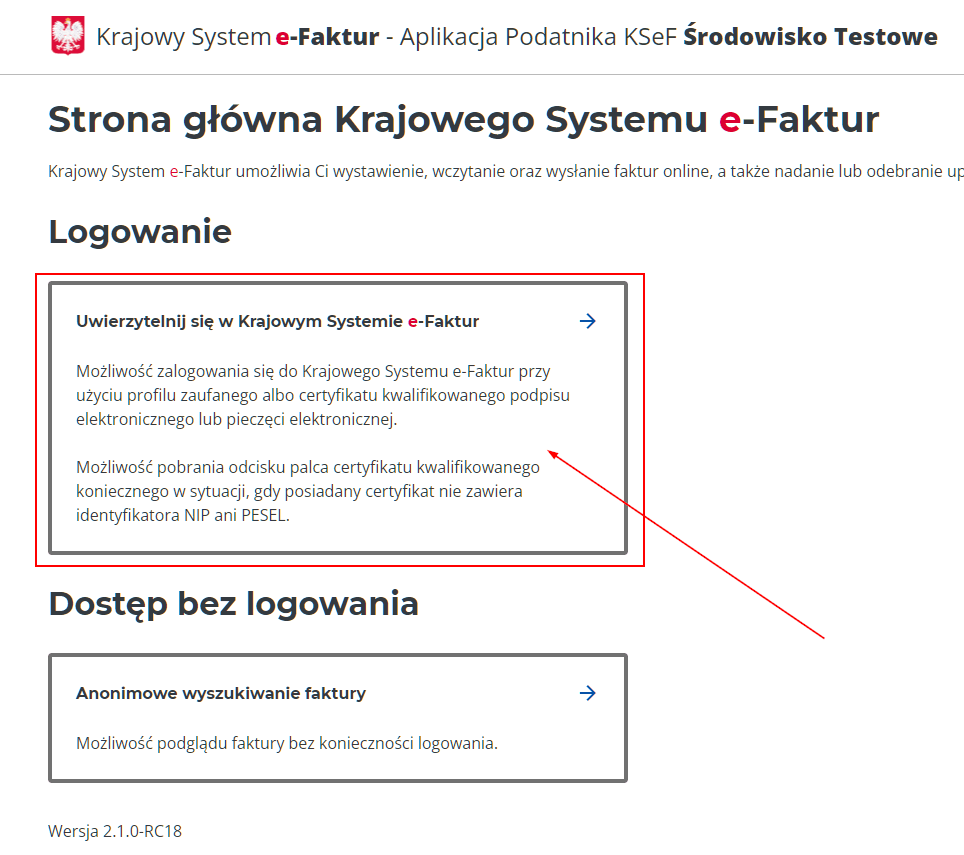
1.2. Available sign-in methods
KSeF offers several authentication methods. Which one you can use depends on the environment:
| Environment | Sign-in method |
|---|---|
| TEST | The NIP number alone is enough (BomTox test authentication) |
| DEMO | A Trusted Profile (Profil Zaufany) or a qualified signature is required |
| PROD | A Trusted Profile (Profil Zaufany) or a qualified signature is required |
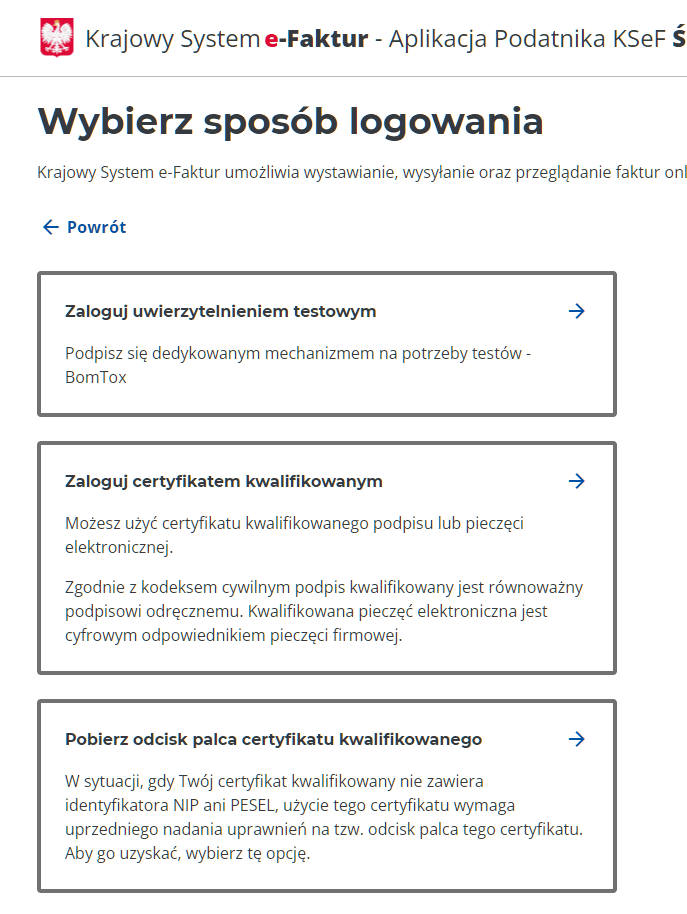
A) Test authentication (BomTox) — for LEARNING and TESTING only
A token generated at ap-test.ksef.mf.gov.pl works ONLY with the TEST environment.
Do not select PROD in the software if you have a test token!
This is the simplest sign-in method and it is intended solely for testing. It requires no certificates and no additional tools.
How to use it (for learning only!):
- Go to ap-test.ksef.mf.gov.pl (note the "test" in the address!)
- Choose the option „Zaloguj uwierzytelnieniem testowym" (Sign in with test authentication)
- Enter any NIP (for example the test one: 8888888888)
- Click „Zaloguj" (Sign in)
- In KSeF Client select the environment: TEST
This method is only for learning how the software works — not for real invoices.
The pre-production environment (DEMO)
Besides the test environment (TEST), there is also a pre-production environment (DEMO):
https://ap-demo.ksef.mf.gov.pl
- The KSeF 2.0 Taxpayer Application in the pre-production (Demo) environment lets you issue and receive invoices under conditions close to production.
- When issuing an invoice in the pre-production (Demo) environment you must use fictitious data. Data in the pre-production (Demo) version of the Taxpayer Application will be deleted periodically.
- Issuing invoices in the pre-production environment carries no tax consequences.
Please note! The DEMO environment requires real authentication (a Trusted Profile (Profil Zaufany), a qualified signature or an e-ID card). Test authentication (BomTox) is not available in the DEMO environment.
- Go to ap.ksef.mf.gov.pl (WITHOUT the word "test" or "demo" in the address!)
- Sign in with a Trusted Profile (Profil Zaufany), an e-ID card or a qualified signature
- Generate an authorisation token
- In KSeF Client select the environment: PROD
- Paste the token generated at ap.ksef.mf.gov.pl
Remember: the address of the site where you generate the token MUST match the environment selected in the software!
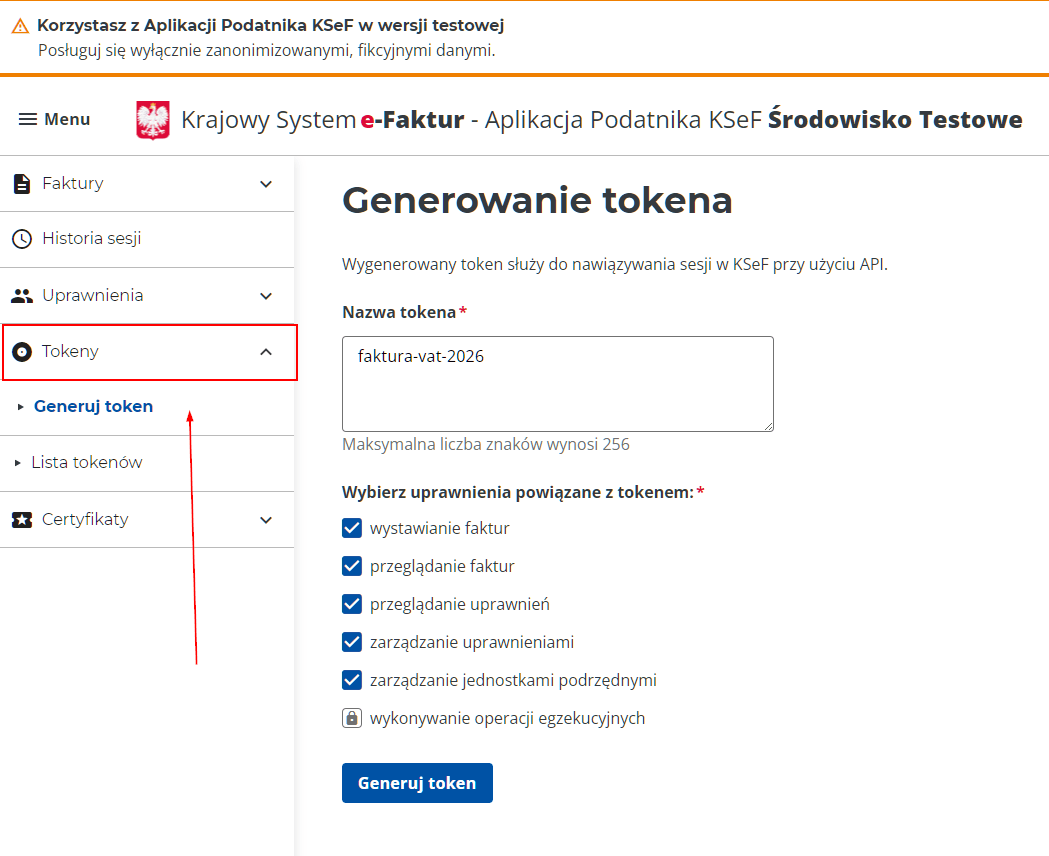
2. Enabling KSeF mode
KSeF mode activates the connection to the Ministry's system and blocks editing and deleting of invoices that have already been sent. The „KSeF mode" box can only be ticked after you have authenticated with the system — that is, after entering the NIP and the token and clicking „Authenticate".
Step by step:
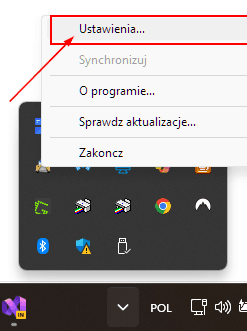
- Open the KSeF 2.0 Client configuration — right-click the icon in the Windows system tray (next to the clock) → Settings
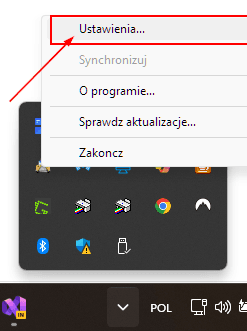
- Go to the Main tab
- Select the Environment:
- TEST — if you want to test with fictitious data (BomTox)
- DEMO — if you want to test with real authentication and fictitious invoices
- PROD — if you want to send and receive real invoices to and from KSeF
- Enter the company NIP
- Paste the KSeF token (generated earlier on the Taxpayer Application portal)
- Click „Authenticate" — the software will connect to KSeF
- Once authentication succeeds (the status at the bottom of the window reads „Authentication: active"), tick the „KSeF mode (block editing and deleting of invoices)" box
- Close the configuration window
| Token from ap-test.ksef.mf.gov.pl | → Select: TEST |
| Token from ap-demo.ksef.mf.gov.pl | → Select: DEMO |
| Token from ap.ksef.mf.gov.pl | → Select: PROD |
A mismatched environment ends with an HTTP 401 Unauthorized error.
💡 How do you recognise the environment from the web address?
- ap-test.ksef.mf.gov.pl — contains the word "test" → the TEST environment
- ap-demo.ksef.mf.gov.pl — contains the word "demo" → the DEMO environment
- ap.ksef.mf.gov.pl — NO prefix → the PROD environment (real invoices)
3. Synchronisation in Faktura VAT 2026
The „KSeF Synchronisation" button on the invoice list starts the full synchronisation process:
- Exporting invoices for sending — new invoices from the software go into the KSeF queue
- Sending to KSeF — the invoices are signed with the token and sent to the Ministry
- Downloading statuses — KSeF numbers are updated for the invoices that were sent
- Importing purchase invoices — invoices issued to your NIP are downloaded
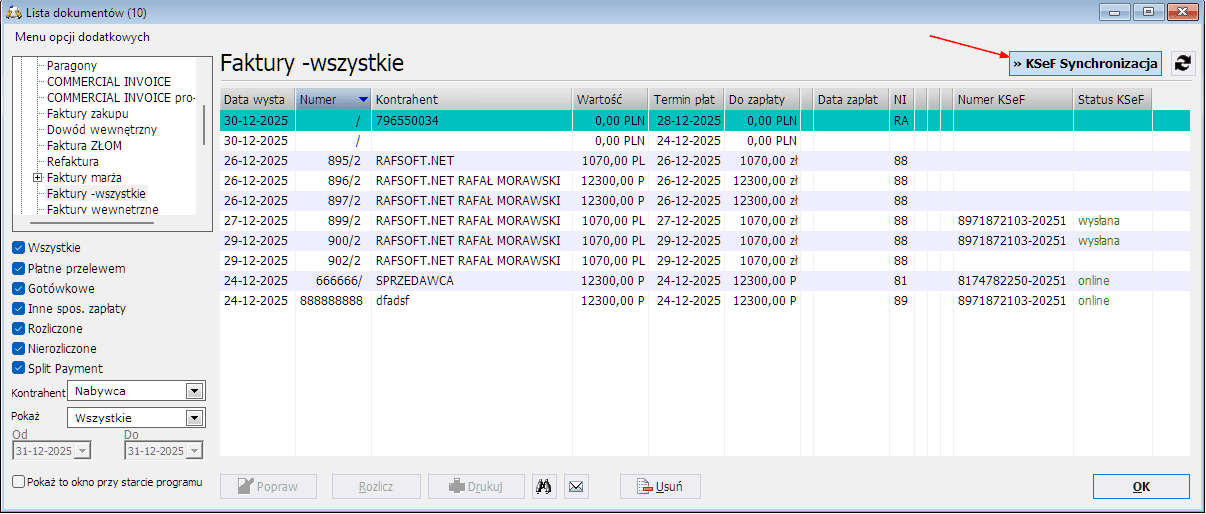
The „Selected only" checkbox
Next to the „KSeF Synchronisation" button there is a „Selected only" box. When you tick it, the software will send to KSeF only the invoices you have highlighted in the list — not everything waiting to be sent.

How to select invoices:
- Ctrl + click — selects individual invoices (you can pick several in different places in the list)
- Shift + click — selects the whole range from the first to the last invoice you clicked
If you click „KSeF Synchronisation" with the box ticked but have not selected any invoice, the software will remind you: „Select the document(s) to send to KSeF."
| What happens | Ordinary synchronisation | With „Selected only" ticked |
|---|---|---|
| Which invoices are sent | Everything waiting to be sent | Only the ones you highlighted in the list |
| The „Send from" setting (KSeF Client) | Applies — older invoices are skipped | Ignored — you can send an older invoice as well |
| Prompts about questionable invoices | Depends on the „Mute messages" setting | Always appear — the software asks about every doubt |
Since you pointed to specific invoices yourself, the software treats this as a deliberate decision and skips nothing silently — with every doubt (a missing exchange rate, a date from another month, an unusual VAT rate, a missing buyer country) it will ask whether to send it anyway.
- with an issue date in the future — KSeF accepts an invoice no earlier than on the day it was issued, so such an invoice is skipped even when selected
- that already have a KSeF number or were sent earlier
- of a type that KSeF does not support
- issued to a NIP other than the company in the current profile
You will find the reason each invoice was skipped in the synchronisation window.
4. Statuses and the KSeF number
Once an invoice has been sent to KSeF, the Ministry's system assigns a unique KSeF number in the format:
Example: 1234567890-20260201-ABC123-4D
In the invoice list in Faktura VAT 2026, the „KSeF status" column shows one of four states:
| Status | Invoice type | Description |
|---|---|---|
| sent | sales | Your invoice was sent to KSeF and accepted — a KSeF number has been assigned. You can download the UPO and the QR code. |
| online | purchase | A purchase invoice downloaded from KSeF (issued to your NIP by your business partner). It reaches the software automatically during synchronisation. |
| processing | sales | KSeF has accepted the file and is still processing it. The software re-checks every few minutes and will download the KSeF number automatically once it is ready. |
| error | sales | KSeF rejected the invoice (validation, duplicate, authorisation error). The message contains the error code and a description — check the invoice data and send it again. |
5. Running in the background (system tray)
KSeF Client can run in the background and synchronise invoices automatically:
- Close the main window of the program (the X button)
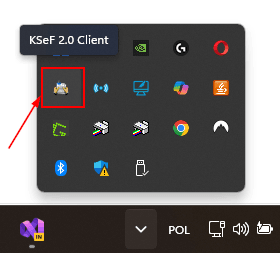
- The program minimises to the system tray (the icon next to the clock)
- Automatic background synchronisation — every 15, 30 or 60 minutes (your choice on the Additional tab, every 15 minutes by default)
- Right-click the icon → Show to open the window
6. UPO — official receipt confirmation
The UPO (Urzędowe Poświadczenie Odbioru) is the official document confirming that KSeF has accepted the invoice.
How to download the UPO:
- Open the invoice list in KSeF Client (the „Invoice list" button)
- Highlight a sales invoice with the status sent
- Click the „Download UPO" button
- The UPO will be saved in the folder:
C:\RAFSOFT\KSEF\upo
7. QR code — invoice verification
The software generates a QR code for every sales invoice with the status sent (a KSeF number assigned by the Ministry).
Where the QR codes are stored: C:\RAFSOFT\KSEF\qrcodes
What is the QR code for?
- Checking whether the invoice is present in KSeF
- Verifying that the invoice has not been modified
- Downloading the invoice in XML format without contacting the issuer
- Placing it on the printed invoice or in an e-mail attachment
8. Multiple company profiles (STANDARD/PRO editions)
If you use Faktura VAT 2026 in the STANDARD or PRO edition and have several company profiles defined (different NIP numbers), each profile can have a SEPARATE KSeF configuration.
When you have more than one profile in Faktura VAT 2026, the system automatically identifies the current NIP and uses the matching KSeF Client configuration. Invoices are stored in separate folders for each NIP number (for example C:\RAFSOFT\KSEF\1234567890\out).
- In Faktura VAT 2026, select the company profile (Menu: File → Change profile).
- Click the „KSeF Synchronisation" button on the invoice list.
- If no token is configured for that profile, the KSeF Client window will open.
- Enter the NIP and the token for that particular company and click Save.
The production environment (PROD) – live since 1 February 2026
| Environment | Taxpayer Application | Purpose |
|---|---|---|
| TEST | ap-test.ksef.mf.gov.pl | Tests with fictitious data (BomTox), with no legal effect |
| DEMO | ap-demo.ksef.mf.gov.pl | Tests with real authentication, fictitious invoices |
| PROD | ap.ksef.mf.gov.pl | REAL invoices — full legal and tax effect |
Sign-in methods in the PROD environment: Trusted Profile (Profil Zaufany, ePUAP) · e-ID card · online banking · qualified certificate · the mObywatel app
9. Troubleshooting
If you see the error „Authentication error" or „401 Unauthorized", you have most likely generated the token in a different environment from the one selected in KSeF Client.
| Where did you generate the token? | What must you select in KSeF Client? |
|---|---|
| ap-test.ksef.mf.gov.pl | Environment: TEST |
| ap-demo.ksef.mf.gov.pl | Environment: DEMO |
| ap.ksef.mf.gov.pl (no prefix) | Environment: PROD |
A token generated in the TEST environment will not work in PROD, and vice versa!
Each environment has its own, separate tokens. Tokens are NOT interchangeable between environments.
If you have run into a problem with the KSeF integration, send us a report through our contact form. In the report, give the version number of the software (Menu: Help → About) and attach the zipped diagnostic folder.
Zip up the
C:\RAFSOFT\KSEF folder without the qrcodes subfolder (it can be very large) and attach the archive to the report. It contains the KSeF communication logs, the configuration files and the sending history — everything we need to diagnose the problem.
You can send a report straight from Faktura VAT 2026 — click the green icon with the „i" symbol in the top right-hand corner of the program window. The form will open automatically with the version details already filled in. The diagnostic attachments (the KSeF folder) are added automatically — this is the recommended way to report problems.